

The best monitor for a Mac mini in 2026 is a 27-inch 5K display, because 5K is the resolution macOS is designed around. Our top pick is the ASUS ProArt PA27JCV, the most polished option from Apple is the Apple Studio Display, and if you would rather save money, the Dell 27 Plus S2725QC is a smooth 4K choice at a budget level.
The Mac mini comes without a screen, so the monitor you choose decides how the whole desk looks and feels. We sorted these picks by what matters on a Mac: 5K versus 4K sharpness, Thunderbolt and USB-C connections, a built-in dock, colour accuracy, and how many displays each Mac mini chip can run. Every model is a current listing on Amazon US, and every spec comes from the Amazon listing or the manufacturer. Display limits come from Apple’s own Mac mini tech specs.
Top 3 Monitors for Mac Mini at a Glance
🏆 Best Overall
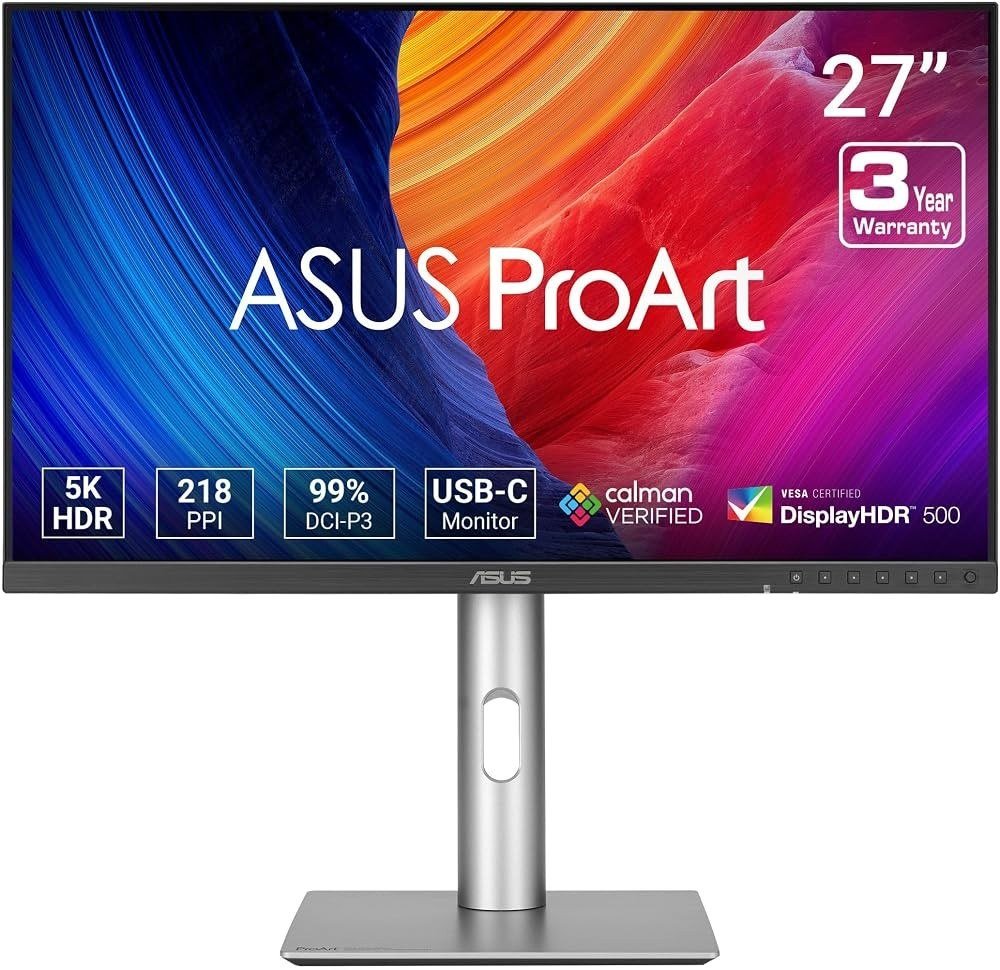
ASUS ProArt PA27JCV
True 27-inch 5K with calibrated color and a USB-C hub.
Check Price on Amazon🍎 Best Premium
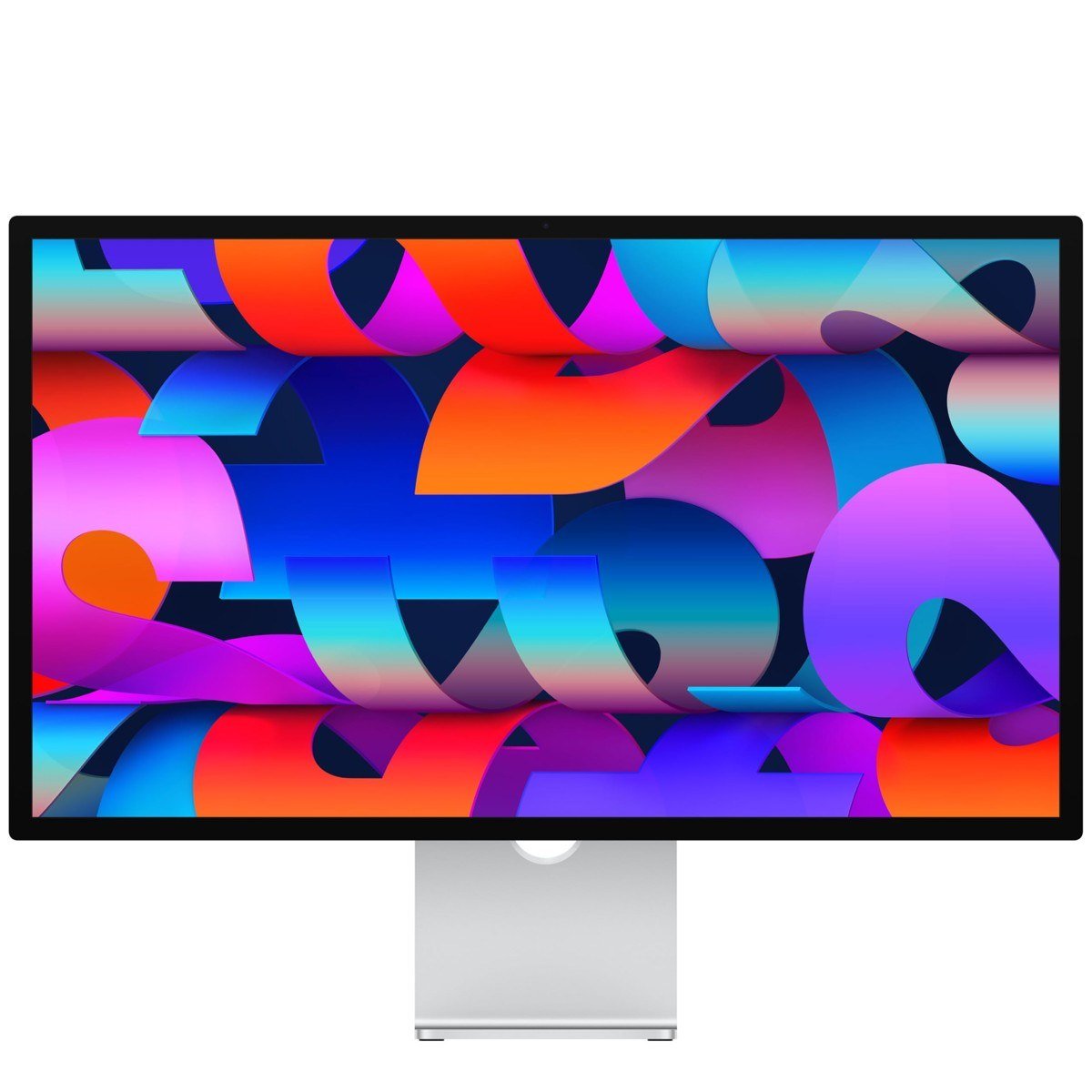
Apple Studio Display
Apple’s 5K Thunderbolt 5 display with camera and speakers.
Check Price on Amazon💰 Best Budget
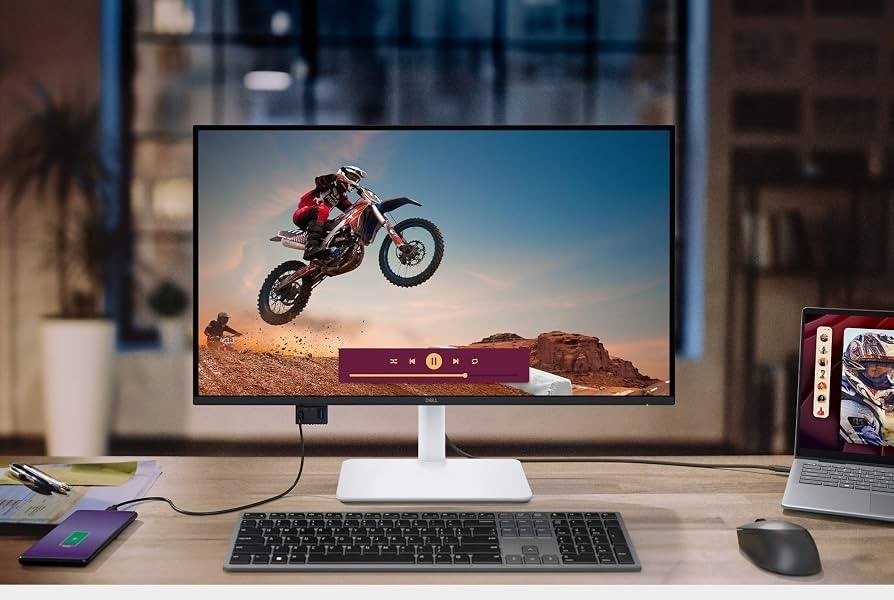
Dell 27 Plus S2725QC
27-inch 4K at 120Hz with USB-C and HDMI inputs.
Check Price on AmazonDeal tip: monitor prices change often, especially around holiday sales. Check today’s Amazon price before you buy.
Quick Comparison: Best Monitors for Mac Mini in 2026
| Monitor | Screen | Panel | Connection | Best for | Deal |
|---|---|---|---|---|---|
| ASUS ProArt PA27JCV | 27″ 5120 x 2880 | IPS, matte | USB-C, 96W | Best 5K value | Check Price |
| Apple Studio Display | 27″ 5120 x 2880 | 5K Retina, 600 nits | Thunderbolt 5 | Native Apple setup | Check Price |
| Dell UltraSharp U2725QE | 27″ 3840 x 2160 | IPS Black, 120Hz | Thunderbolt 4, 140W | 4K 120Hz + dock | Check Price |
| Samsung ViewFinity S8 (S80HF) | 27″ 5120 x 2880 | HDR10+, matte | USB-C 90W, LAN | Cheaper 5K | Check Price |
| Dell 27 Plus S2725QC | 27″ 3840 x 2160 | IPS, 120Hz | USB-C 65W, HDMI, DP | Budget 4K | Check Price |
| BenQ MA270S | 27″ 5120 x 2880 | Nano Gloss, P3 | 2x Thunderbolt 4, 96W | Mac-tuned Thunderbolt 5K | Check Price |
| LG UltraFine 27UP850K-W | 27″ 3840 x 2160 | IPS, DisplayHDR 400 | USB-C 90W, 2x HDMI | All-round 4K | Check Price |
| LG UltraWide 34WQ73A-B | 34″ 3440 x 1440 | Curved IPS, 21:9 | USB-C 90W, KVM | Ultrawide multitasking | Check Price |
| ASUS ProArt PA32UCDM | 31.5″ 3840 x 2160 | QD-OLED, 240Hz | Thunderbolt 4 | OLED for creators | Check Price |
What Makes a Monitor Good for a Mac Mini?
A Mac mini has different needs from a Windows PC. These are the points we weigh when we pick a Mac mini monitor.
- Pixel density. macOS looks best on a screen of about 218 pixels per inch, which is what a 27-inch 5K display gives you. A 27-inch 4K screen is about 163 PPI and uses scaling, so it looks good but not quite as crisp.
- The right connection. The Mac mini has Thunderbolt (USB-C) ports and an HDMI port, so you can use USB-C, Thunderbolt or HDMI with any monitor here.
- Display limits per chip. Every Mac mini chip supports up to three external displays, but resolution and refresh rate limits differ, so check the table in this guide.
- Built-in dock features. A Thunderbolt or USB-C hub with USB ports and Ethernet cuts desk clutter, because the Mac mini has a limited set of ports: two USB-C on the front, and three Thunderbolt ports plus HDMI on the back.
- KVM and sharing. If you use a MacBook or a PC with the same desk, a built-in KVM lets you switch one keyboard and mouse between computers.
- Colour and finish. Photographers and video editors need calibrated colour, while everyone else benefits more from a matte finish that handles room light.
Not sure 5K is worth it? See our guides to the best 4K monitors, best 27-inch monitors and best monitors for photo and video editing for more choices.
The 9 Best Monitors for Mac Mini in 2026
1. ASUS ProArt PA27JCV (27″ 5K IPS, USB-C 96W) – Best Monitor for Mac Mini Overall
Buy this if: you want the sharpest text a Mac can show without paying for an Apple display.
Our verdict: The PA27JCV is the monitor we would point most Mac mini owners to first, because it solves the one thing a Mac cares about most: pixel density. Its 27-inch panel is true 5K (5120 x 2880), which works out to about 218 pixels per inch, the same density macOS is designed around, so text and icons look crisp at the default scaling with no blur or workarounds. ASUS tunes it as a Mac monitor with a factory calibration to Delta E under 2, Calman Verified color, 99% DCI-P3 and 100% sRGB coverage, and a MacBook Color Match mode. A single USB-C port carries video, data and up to 96W of power, and the built-in Auto KVM lets you share one keyboard and mouse between your Mac mini and a second computer. The stand adjusts for height, and the matte finish keeps reflections down.
Key specs
- 27-inch IPS, 5120 x 2880 (5K), matte finish
- 99% DCI-P3, 100% sRGB, Calman Verified, Delta E under 2
- VESA DisplayHDR 500 (per ASUS)
- USB-C with DisplayPort, data and 96W power delivery
- Built-in Auto KVM for two computers
- Height-adjustable stand, ambient light and backlight sensors
Pros
- True 5K for sharp macOS text at 218 PPI
- Factory-calibrated color for photo and design work
- One USB-C cable plus Auto KVM
- Matte finish and height-adjustable stand
Cons
- No built-in camera or speakers
- The Mac mini does not need the 96W charging
- DisplayHDR 500 is not a high-brightness HDR display
Who it’s for: Mac mini owners who want a sharp, colour-accurate 27-inch screen and do not need Apple’s camera and speakers.
2. Apple Studio Display (27″ 5K, Thunderbolt 5, camera and speakers) – Best Premium Monitor for Mac Mini
Buy this if: you want the most seamless Mac mini setup and want a camera, mics and speakers built in.
Our verdict: The Studio Display is the easiest answer if you want everything in one box. Its 27-inch 5K Retina panel runs at 5120 x 2880 and 218 pixels per inch with 600 nits of brightness, P3 wide color and True Tone. It also folds in a 12MP Center Stage camera with Desk View, a three-microphone array and a six-speaker sound system with Spatial Audio, so a Mac mini needs no webcam or desk speakers. Two Thunderbolt 5 ports (one upstream with 96W host charging, one downstream for daisy-chaining) and two USB-C ports at 10Gb/s turn it into a small dock. The compromises are the ones you expect from Apple: a 60Hz refresh rate, a tilt-only stand unless you pay extra for the height-adjustable version, and a premium price compared with the other 5K screens here.
Key specs
- 27-inch 5K Retina, 5120 x 2880 at 218 PPI, 600 nits
- 60Hz, P3 wide color, True Tone, anti-reflective coating
- 12MP Center Stage camera with Desk View, three-mic array
- Six-speaker system with Spatial Audio
- 2x Thunderbolt 5 (up to 120Gb/s) and 2x USB-C (up to 10Gb/s); 96W host charging
- Tilt-adjustable stand included; height-adjustable stand, VESA adapter and nano-texture glass are options
Pros
- Excellent camera, mics and speakers built in
- Thunderbolt 5 ports act as a dock
- Seamless with macOS
- Anti-reflective coating as standard
Cons
- 60Hz only
- Costs far more than the other 5K monitors here
- Standard stand only tilts
Who it’s for: Mac mini owners who value a clean, all-in-one Apple desk and will pay for the camera, speakers and design.
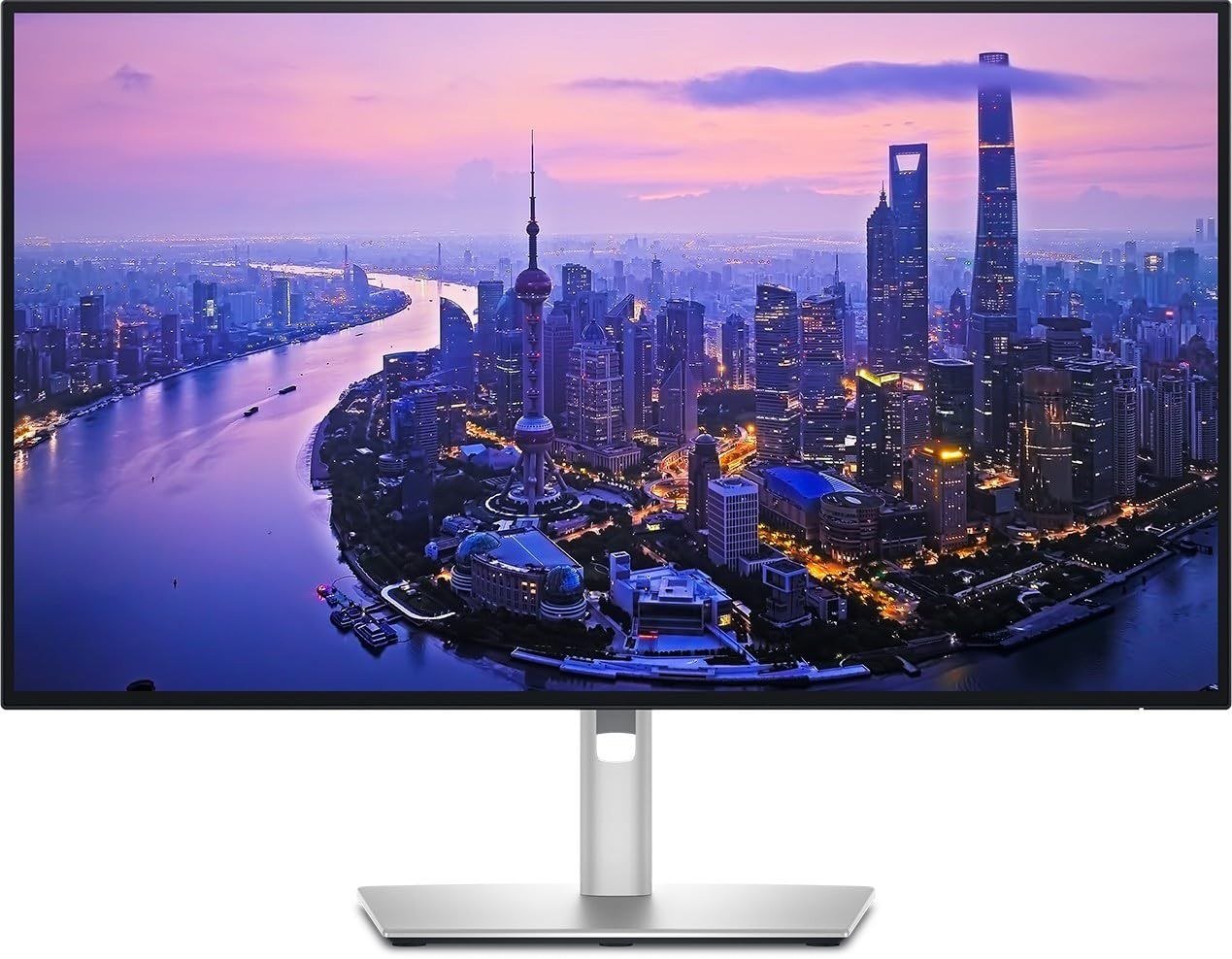
3. Dell UltraSharp U2725QE (27″ 4K IPS Black, 120Hz, Thunderbolt 4) – Best 4K Monitor for Mac Mini (120Hz and Thunderbolt Hub)
Buy this if: you prefer a smooth 120Hz 4K screen and want a full docking hub in your monitor.
Our verdict: If you would rather have motion smoothness than 5K density, the U2725QE is the one to get. It is a 27-inch 4K IPS Black panel running at 120Hz, which makes scrolling and cursor movement noticeably smoother than the 60Hz you get on most 4K work monitors, and the Mac mini can drive a single 4K display at up to 240Hz according to Apple. The Thunderbolt 4 connection carries video, data and up to 140W of power on one cable and supports daisy-chaining, while HDMI 2.1, USB-A and Ethernet ports make the monitor a complete desk hub. Dell factory-calibrates it to Delta E under 1.5 with 99% DCI-P3 coverage, and the stand adjusts for height, tilt, swivel and pivot. Text on a 27-inch 4K screen looks good on a Mac with scaling, but it is not quite as razor sharp as 5K.
Key specs
- 27-inch 4K UHD IPS Black, 3840 x 2160, matte
- 120Hz refresh rate, 5ms response time
- 99% DCI-P3, factory calibrated to Delta E under 1.5
- Thunderbolt 4 with up to 140W power and daisy-chain support
- HDMI 2.1, USB-C, USB-A and Ethernet ports
- Height, tilt, swivel and pivot stand; ComfortView Plus and ambient light sensor
Pros
- Smooth 120Hz in a Mac-friendly 4K monitor
- Thunderbolt 4 hub with Ethernet
- Full ergonomic stand
- Factory-calibrated color
Cons
- 4K is less sharp than 5K at 27 inches
- The Mac mini does not need 140W of power
- Sold at a premium over basic 4K monitors
Who it’s for: Mac mini owners who want a high-refresh 4K monitor with a built-in dock for drives, Ethernet and peripherals.
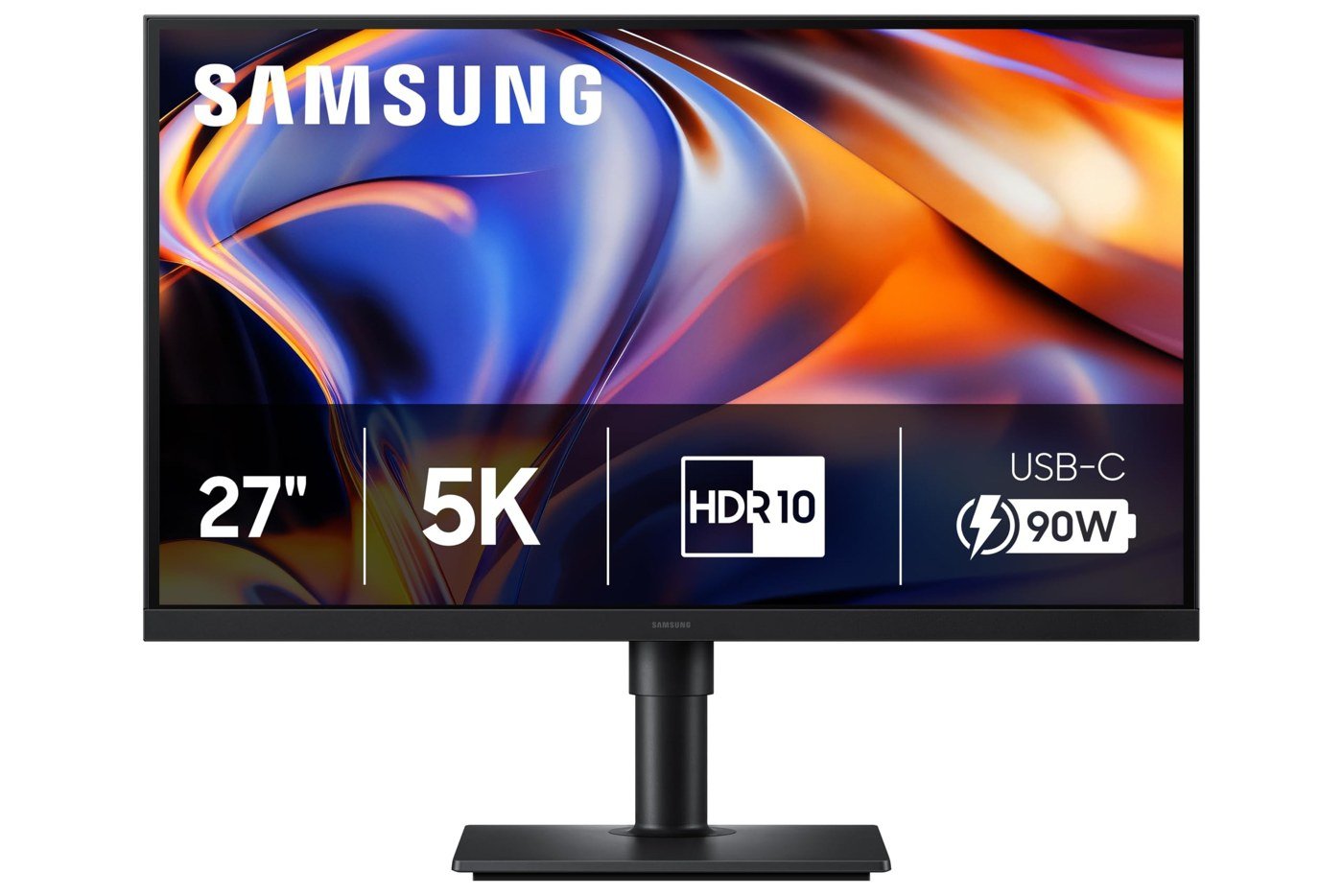
4. Samsung ViewFinity S8 (S80HF) (27″ 5K, USB-C 90W, built-in LAN) – Best Budget 5K Monitor for Mac Mini
Buy this if: you want 5K sharpness on a tighter budget and like having a built-in KVM and Ethernet port.
Our verdict: The ViewFinity S8 S80HF brings 5K down to a much more approachable level. The 27-inch panel is 5120 x 2880 at 218 PPI, so macOS text is as sharp as on far costlier displays, and Samsung adds HDR10+ support, which it says optimises contrast for darker blacks and brighter highlights. The USB-C port handles 90W charging and data at the same time, a built-in LAN port provides wired Ethernet, and the monitor has a KVM switch, picture-in-picture and picture-by-picture modes. Samsung lists an ergonomic design with improved viewing angles and a TÜV-certified Eye Saver Mode. Samsung does not advertise factory colour calibration the way ASUS and BenQ do, so choose it for everyday sharpness and productivity rather than professional colour work.
Key specs
- 27-inch 5K, 5120 x 2880, 218 PPI, matte
- HDR10+
- USB-C with 90W charging and data, built-in LAN port
- Built-in KVM switch, PIP and PBP
- Eye Saver Mode certified by TÜV; Samsung Display Manager
- Ergonomic design with improved viewing angles (per Samsung)
Pros
- 5K sharpness at a lower price
- USB-C, LAN and KVM built in
- Matte finish
- Useful split-screen modes
Cons
- No factory colour calibration advertised
- HDR10+ support is basic
- No camera or speakers listed
Who it’s for: Everyday Mac mini users who want true 5K text clarity without paying creative-monitor prices.
5. Dell 27 Plus S2725QC (27″ 4K IPS, 120Hz, USB-C 65W) – Best Budget 4K Monitor for Mac Mini
Buy this if: you want a sharp, smooth, affordable 4K monitor and mostly use your Mac for work and browsing.
Our verdict: The S2725QC is the value pick for a Mac mini desk. You get a 27-inch 4K IPS panel with a 120Hz refresh rate, 99% sRGB coverage and AMD FreeSync Premium, which is rare at an entry-level price, plus a USB-C port with 65W power delivery, an HDMI input, a DisplayPort input and built-in speakers. Dell’s ComfortView Plus lowers blue light emissions to 35% or less. Because the Mac mini has its own HDMI port and Thunderbolt ports, you can use a simple HDMI or USB-C cable and be running in seconds. The trade-offs are the typical budget ones: 4K at 27 inches is about 163 pixels per inch, so macOS uses scaling and text is a step behind 5K, colour accuracy is not its focus, and you will not get Thunderbolt daisy-chaining.
Key specs
- 27-inch 4K UHD IPS, 3840 x 2160, 163 PPI, matte
- 120Hz with AMD FreeSync Premium, 4ms response
- 99% sRGB, 1500:1 contrast, HDR readiness
- USB-C (up to 65W power delivery), HDMI and DisplayPort
- Built-in speakers
- ComfortView Plus, TÜV Rheinland 4-star eye comfort
Pros
- 4K at 120Hz at an entry-level price
- USB-C, HDMI and DisplayPort inputs
- Built-in speakers
- Simple plug-in setup
Cons
- Not as sharp as 5K on macOS
- No Thunderbolt or daisy-chaining
- Modest colour accuracy for creative work
Who it’s for: Students, home-office users and first-time Mac mini buyers who want a good all-round screen on a budget.
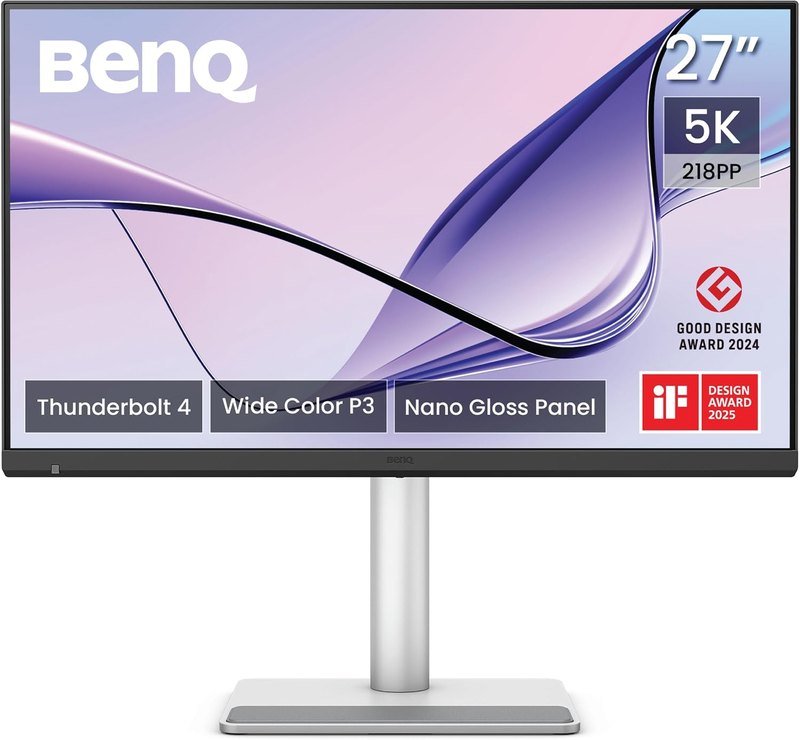
6. BenQ MA270S (27″ 5K Nano Gloss, dual Thunderbolt 4) – Best Mac-Tuned 5K Monitor with Thunderbolt 4
Buy this if: you want 5K with Thunderbolt 4 daisy-chaining and a monitor designed specifically for Macs.
Our verdict: BenQ built the MA270S for Mac users, and it shows in the details. The 27-inch 5K panel (5120 x 2880) uses a Nano Gloss finish for deep blacks and bright highlights, and a wide P3 gamut with Mac-specific colour tuning keeps colours consistent with a MacBook. Two Thunderbolt 4 ports deliver the 5K signal, fast data and 96W/15W power, so you can daisy-chain a second display or a drive, and HDMI and USB-C ports add flexibility. A Smart KVM switches between two Macs, you can control brightness and volume from your Mac, and the stand adjusts for height, tilt, swivel and pivot. Thunderbolt 4 on the Mac mini M4 and M6 matches the monitor’s ports exactly.
Key specs
- 27-inch 5K, 5120 x 2880, Nano Gloss panel
- Wide P3 colour gamut with Mac Color tuning
- 2x Thunderbolt 4 (96W / 15W power delivery), HDMI and USB-C
- Thunderbolt 4 daisy-chain support, Smart KVM
- Brightness and volume control from the Mac
- Height, tilt, swivel and pivot stand
Pros
- Thunderbolt 4 daisy-chaining at 5K
- Mac-specific colour tuning
- Full ergonomic stand
- Smart KVM for two Macs
Cons
- Nano Gloss is not a fully matte finish
- Costs more than other 5K monitors here
- No webcam or speakers
Who it’s for: Mac mini owners with a MacBook or second Mac who want a Thunderbolt 5K monitor to share.
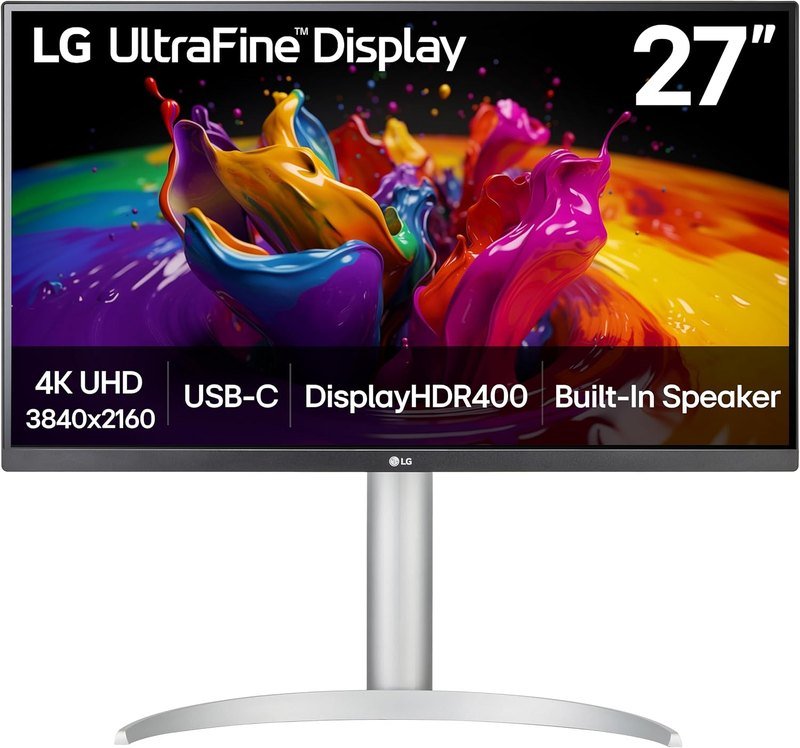
7. LG UltraFine 27UP850K-W (27″ 4K IPS, USB-C 90W, speakers) – Best 4K USB-C Monitor with Built-In Speakers
Buy this if: you want a flexible 4K IPS monitor with USB-C, extra HDMI ports and built-in speakers.
Our verdict: LG’s UltraFine 27UP850K-W is a well-rounded 4K monitor for a Mac mini desk. The 27-inch IPS panel runs at 3840 x 2160 with up to 95% DCI-P3 colour and VESA DisplayHDR 400 compatibility, which gives it brighter highlights than a basic monitor. Connectivity is generous: USB-C with data and up to 90W power delivery, a DisplayPort input, two HDMI ports, two USB 3.0 ports and a headphone jack, plus stereo speakers with Waves MaxxAudio. That makes it easy to share between a Mac mini and a second computer or console. LG also includes gaming features such as Black Stabilizer and Dynamic Action Sync. Like every 27-inch 4K display, macOS shows it with scaling rather than at an exact 2x, so text is good but not 5K sharp.
Key specs
- 27-inch 4K UHD IPS, 3840 x 2160, matte
- Up to 95% DCI-P3, VESA DisplayHDR 400 compatible
- USB-C (data and up to 90W power delivery), DisplayPort, 2x HDMI
- 2x USB 3.0 ports, headphone jack
- Stereo speakers with Waves MaxxAudio
- Black Stabilizer and Dynamic Action Sync
Pros
- Many inputs for sharing between devices
- Built-in speakers
- USB-C hub with 90W power
- DisplayHDR 400 compatible
Cons
- 4K is less sharp than 5K on macOS
- DisplayHDR 400 is entry-level HDR
- No Thunderbolt daisy-chaining
Who it’s for: Mac mini owners who also connect a PC, console or laptop and want one flexible 4K screen.
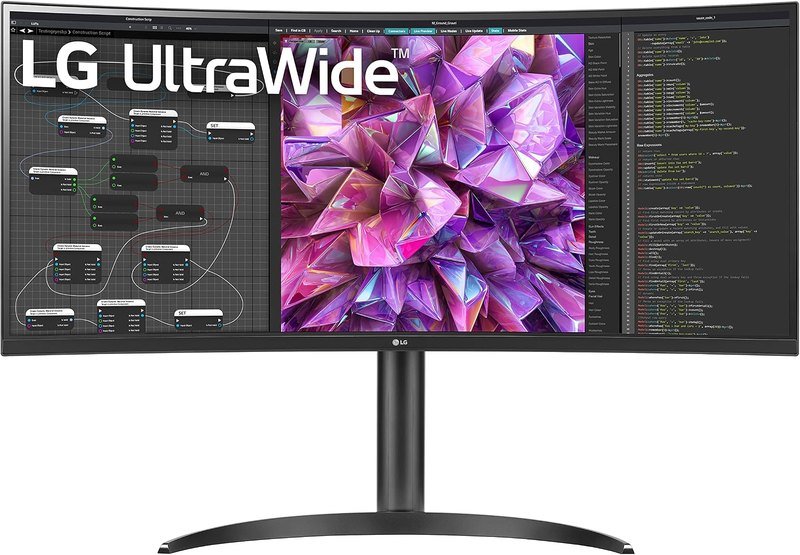
8. LG UltraWide 34WQ73A-B (34″ curved ultrawide 3440 x 1440, USB-C 90W) – Best Ultrawide Monitor for Mac Mini
Buy this if: you want one wide screen instead of two monitors for multitasking.
Our verdict: A 34-inch ultrawide can replace a dual-monitor setup on a Mac mini desk, and the 34WQ73A-B does it with a QHD (3440 x 1440) curved IPS panel in 21:9. The extra width suits timelines, spreadsheets and side-by-side windows, and the curve keeps the edges comfortable at desk distance. LG lists HDR10 support and 99% sRGB coverage, built-in KVM with a Dual Controller feature to control two computers, and USB-C with up to 90W power delivery for a single-cable connection. Reader Mode and Flicker Safe help with long sessions. The pixel density is lower than 4K or 5K, around 110 PPI, so macOS text looks clean but not Retina-sharp, which is why we rank it behind the 5K and 4K options for pure clarity.
Key specs
- 34-inch curved IPS, 3440 x 1440 (QHD), 21:9
- HDR10 support, 99% sRGB
- USB-C with up to 90W power delivery
- Built-in KVM and Dual Controller
- Reader Mode, Flicker Safe
- Dynamic Action Sync and Black Stabilizer
Pros
- Replaces two monitors with one wide screen
- USB-C and KVM built in
- Curved IPS panel
- 99% sRGB colour
Cons
- Not as sharp as 4K or 5K
- HDR10 support is basic
- Takes more desk space
Who it’s for: Mac mini owners who multitask a lot and prefer one wide screen to a dual-monitor setup.
9. ASUS ProArt PA32UCDM (32″ 4K QD-OLED, 240Hz, Thunderbolt 4) – Best OLED Monitor for Mac Mini Creators
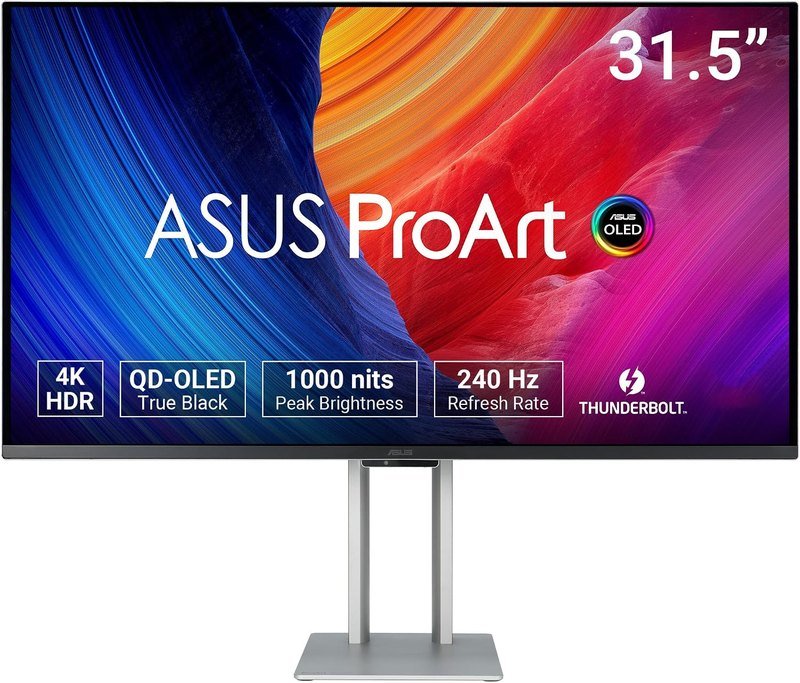
Buy this if: you edit photos or video, want OLED contrast and HDR, and have the budget for a top-tier panel.
Our verdict: The PA32UCDM is the most advanced monitor in this guide. Its 31.5-inch 4K QD-OLED panel delivers true blacks with VESA DisplayHDR True Black 400 certification, 1000 nits of peak brightness, and support for Dolby Vision, HLG and HDR10. Colour coverage is 100% sRGB and 99% DCI-P3 with a Delta E under 1 factory rating, and ASUS ProArt hardware calibration lets you write colour profiles back to the monitor. Thunderbolt 4 connects directly to the Mac mini, and the panel can run at up to 240Hz with a 0.1ms (GtG) response time, which Apple says a single Mac mini display can match at 4K. ASUS includes a five-year warranty with online registration. As with any OLED, avoid leaving static windows on screen for long stretches.
Key specs
- 31.5-inch 4K UHD QD-OLED, 3840 x 2160, matte
- 240Hz refresh rate, 0.1ms (GtG)
- 1000 nits peak, VESA DisplayHDR True Black 400
- 100% sRGB, 99% DCI-P3, BT.2020, Delta E under 1
- Dolby Vision, HLG and HDR10 support
- Thunderbolt 4, Calman Ready, 5-year warranty with registration
Pros
- OLED blacks and excellent HDR
- Hardware calibration for colour work
- 240Hz 4K
- Thunderbolt 4 and a 5-year warranty
Cons
- Highest-tier price in this guide
- OLED needs care with static content
- 32 inches is large for a small desk
Who it’s for: Mac mini owners who edit photos or video and want a reference-style OLED monitor.
Mac Mini Monitor Buying Guide
How many monitors can a Mac mini run?
According to Apple’s Mac mini tech specs, the Mac mini with M4 supports up to three displays: two displays up to 6K at 60Hz over Thunderbolt, plus a third display up to 5K at 60Hz over Thunderbolt or 4K at 60Hz over HDMI. With a single display it supports up to 8K at 60Hz or 4K at 240Hz. The M4 Pro supports three displays up to 6K at 60Hz over Thunderbolt or HDMI. Apple’s current Mac mini lineup uses the M6 and M5 Pro chips. The M6 supports up to three displays (two up to 6K at 60Hz or 4K at 165Hz, plus a third up to 5K at 60Hz over Thunderbolt or 4K at 60Hz over HDMI), and the M5 Pro supports three displays up to 6K at 60Hz or 4K at 165Hz. Every one of these chips can drive a 5K display at 60Hz, which covers all of the 5K monitors in this guide. Always check Apple’s tech specs for your exact model.
5K or 4K for a Mac mini?
macOS renders a screen at double its “looks like” resolution, so the sharpest results come from a display of about 218 PPI. A 27-inch 5K monitor (5120 x 2880) is exactly double 2560 x 1440, so you get perfect Retina rendering at the default size. A 27-inch 4K monitor is about 163 PPI, so macOS scales the image, and a 32-inch 4K monitor is about 138 PPI. Both look good, and many people are happy with 4K, but if you read a lot of text or code and want it as sharp as Apple’s own screens, 5K is worth the extra cost. A 4K monitor at 120Hz, like the Dell U2725QE or S2725QC, gives smoother motion instead.
Thunderbolt, USB-C or HDMI?
All three work. Thunderbolt 4 and USB-C with DisplayPort give you one-cable setups when the monitor has a hub, but the Mac mini does not need the power delivery that laptop-focused monitors advertise. HDMI is perfectly fine for a single 4K display. Note that Apple’s specs limit a third display on HDMI to 4K at 60Hz for the M4 and M6, so use Thunderbolt for your main screens. You will need to buy the cable yourself, because the Mac mini ships only with a power cord.
Do you need Thunderbolt on the monitor?
Only if you want to daisy-chain a second display or share a dock. The BenQ MA270S, Dell U2725QE, ASUS ProArt PA32UCDM and Apple Studio Display all offer Thunderbolt connections. If you only need to plug one monitor in, a USB-C or HDMI connection (as on the ASUS PA27JCV, Samsung S80HF or Dell S2725QC) costs less and works just as well.
Refresh rate: is 60Hz enough?
For writing, coding, design and video editing, 60Hz is fine, and the Studio Display and most 5K monitors use it. 120Hz makes scrolling, window dragging and the cursor feel smoother, and macOS supports it. If you value that feel, choose a 4K 120Hz monitor like the Dell U2725QE or S2725QC. Apple’s specs list 4K at up to 240Hz on a single display, so the Mac mini can drive them.
Glossy, matte or Nano Gloss?
A glossy panel, as on the Studio Display, makes colours look punchy but reflects windows and lamps. A matte finish, as on the ASUS PA27JCV and Dell U2725QE, reduces glare in bright rooms. BenQ’s MA270S uses its own Nano Gloss finish, which is listed as neither glossy nor matte. Choose based on your room, not on the spec sheet.
Colour accuracy and HDR
If you edit photos or video, look for factory calibration (Delta E under 2) and wide P3 coverage, as on the ASUS PA27JCV, BenQ MA270S and Dell U2725QE. For true HDR, the OLED ASUS PA32UCDM stands apart. Most other monitors here support HDR only at a basic level. Our guides to monitors for color accuracy and the best HDR monitors go deeper.
Ultrawide on a Mac mini
A 34-inch 3440 x 1440 ultrawide like the LG 34WQ73A-B works well for multitasking, but pixel density is lower than 4K or 5K. See our best ultrawide monitors and best 34-inch monitors guides for more.
Gaming on a Mac mini
The Mac mini is not a gaming PC, but a 4K 120Hz monitor still makes a Mac feel faster. If gaming is your main use, a monitor built for gaming will serve you better than a Mac-focused one. Our best affordable gaming monitor guide covers those.
Best Settings for a Monitor on a Mac Mini
- Pick the right scaled resolution. Open System Settings, then Displays, and choose the “looks like” size you prefer. On a 27-inch 5K monitor the default is the sharpest. On a 27-inch 4K monitor, “looks like 2560 x 1440” keeps text the same size as a standard 1440p monitor.
- Turn on high refresh rate. On a 120Hz monitor, open Displays, click Advanced and choose the highest refresh rate if macOS does not pick it for you.
- Use a certified cable. For 5K or 4K at 120Hz, use the cable supplied with the monitor or a Thunderbolt or USB4 cable. A poor-quality cable can cause black screens or flicker.
- Connect your main screens to Thunderbolt. If you run more than one monitor, use the Thunderbolt ports for your highest-resolution displays and HDMI for a secondary 4K screen.
- Match colour to your work. Choose a P3 or sRGB preset in the monitor menu and avoid “vivid” modes if you edit photos or video.
- Use Night Shift or True Tone sparingly. These features shift white balance, so turn them off when you need accurate colour.
- Set up the KVM. On KVM monitors, assign your Mac mini and second computer to their inputs in the monitor menu so the keyboard and mouse follow the screen.
A few minutes in System Settings and the monitor menu usually does more for sharpness than spending extra on a bigger panel.
Which Monitor Should You Buy for Your Mac Mini?
- Want the best all-round choice? Get the ASUS ProArt PA27JCV for true 5K and calibrated colour.
- Want the full Apple experience? Choose the Apple Studio Display for the camera, speakers and Thunderbolt 5 ports.
- Want smooth 4K and a dock? The Dell UltraSharp U2725QE offers 120Hz and a Thunderbolt 4 hub.
- On a tighter budget? Pick the 5K Samsung ViewFinity S8 (S80HF) or the 4K Dell 27 Plus S2725QC.
- Have a MacBook too? The BenQ MA270S has dual Thunderbolt 4 ports and a Smart KVM for two Macs.
- Need speakers and many ports? The LG UltraFine 27UP850K-W has USB-C, two HDMI ports and built-in speakers.
- Want an ultrawide or OLED? The LG UltraWide 34WQ73A-B replaces two screens, and the ASUS ProArt PA32UCDM is the OLED creator pick.
Mac Mini Monitor FAQ
What is the best monitor for Mac mini in 2026?
For most people, the ASUS ProArt PA27JCV. It is a true 27-inch 5K display with calibrated colour, a USB-C connection with 96W power delivery and a built-in KVM. If you want an all-in-one Apple setup with a camera and speakers, choose the Apple Studio Display.
Is a 4K monitor good enough for a Mac mini?
Yes. A 27-inch 4K monitor looks good on a Mac, although macOS has to scale the image, so text is slightly less sharp than on 5K. A 4K 120Hz monitor like the Dell S2725QC is a very good budget choice.
Is 5K worth it for a Mac mini?
If you read, write or code for hours a day, yes. A 27-inch 5K display has about 218 pixels per inch, which matches the density macOS is designed for, so text looks as sharp as on an Apple display.
How many monitors can a Mac mini support?
Apple’s tech specs list support for up to three external displays on the M4, M4 Pro, M6 and M5 Pro. Resolution and refresh limits depend on the chip and on which ports you use, so check the display section of Apple’s specs for your model.
Does the Mac mini work with HDMI monitors?
Yes. The Mac mini has an HDMI port, and Apple lists up to 4K at 240Hz or 8K at 60Hz on a single display. As a third display, HDMI is limited to 4K at 60Hz on the M4 and M6.
Do I need a Thunderbolt monitor for a Mac mini?
No. You only need Thunderbolt if you want to daisy-chain displays or share a dock. A USB-C or HDMI monitor works well for a single screen.
Can I use a gaming monitor with a Mac mini?
Yes, as long as it has HDMI, DisplayPort over USB-C or another input the Mac can drive. For macOS text, however, a 5K or 4K monitor with high pixel density looks better than a 1080p or 1440p gaming monitor.
Does the Mac mini come with a display cable?
No. Apple lists only the Mac mini and a power cord in the box, so you need to buy an HDMI, USB-C or Thunderbolt cable, unless your monitor comes with one.
Final Verdict
The best monitor for a Mac mini is a 27-inch 5K display, and the ASUS ProArt PA27JCV gives you true 5K, calibrated colour and a USB-C hub at the best value. If you want Apple’s camera, speakers and Thunderbolt 5, the Apple Studio Display is the polished choice. For smooth 4K and a full dock, choose the Dell UltraSharp U2725QE, and for a budget setup, the Dell 27 Plus S2725QC or Samsung ViewFinity S8 are the smart buys. Prices change often, so check today’s deal before you buy.

A former esports professional turned tech journalist, Aiden Johnson is on a mission to help gamers optimize their setups. His expertise extends beyond gaming monitors, encompassing the broader tech ecosystem. Known for breaking down complex topics into digestible pieces, Aiden provides a holistic view of how monitors fit into the larger gaming and tech landscape.