
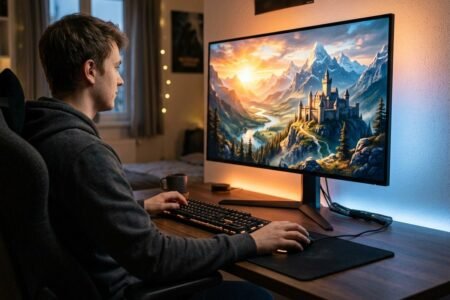
4K is a resolution: it tells you how many pixels the screen has. Refresh rate tells you how many times per second the screen updates the picture. For gaming you often have to choose which one to prioritize, because your graphics card only has so much power to spend.
In short: pick a high refresh rate (120Hz to 144Hz or more) if you play fast competitive games or have a limited budget. Pick 4K if you play slower, great-looking games, watch a lot of video, or edit photos and video. If you have a strong graphics card and the budget, a 4K high refresh rate monitor gives you both.
New to these terms? Read our guides on what a 4K monitor is, what monitor refresh rate means and resolution vs refresh rate first.
4K vs High Refresh Rate: Quick Comparison
| Feature | 4K Resolution | High Refresh Rate (120Hz or more) |
|---|---|---|
| What it changes | Number of pixels: 3840 x 2160 (about 8.3 million) | How often the image updates each second |
| Main benefit | Sharper image, finer detail and crisper text | Smoother motion and less motion blur |
| GPU demand | High: 4 times the pixels of 1080p to render | High: needs a high frame rate to benefit |
| Best for | Single-player and open-world games, movies, photo and video editing | Shooters, racing games and other fast, competitive games |
What 4K Resolution Gives You
4K, also called UHD, means 3840 x 2160 pixels. That is four times the pixels of Full HD (1920 x 1080). More pixels mean finer detail, sharper text and more room for windows on your desktop. The difference is easiest to see on larger screens (27 inches and up) or when you sit close to the monitor.
4K suits games with big, detailed worlds, plus movies, photo editing and video editing. Our list of the best 4K monitors shows current options.
Hardware Demands of 4K
Your graphics card has to draw four times as many pixels as at 1080p, so the same game usually runs at a lower frame rate at 4K. Upscaling features such as NVIDIA DLSS and AMD FSR can help, but a capable graphics card still matters. Here is what to check:
| Component | What to check |
|---|---|
| Graphics card | Enough power for your games at 4K, and an output that supports the refresh rate you want |
| Ports and cable | HDMI 2.0 or DisplayPort 1.2 for 4K at 60Hz; HDMI 2.1 or DisplayPort 1.4 for 4K at 120Hz or higher (the highest modes often rely on DSC compression) |
| Monitor | A 4K panel that supports your target refresh rate |
Good airflow in your PC case also helps a powerful graphics card keep its performance during long gaming sessions.
What a High Refresh Rate Gives You
Refresh rate is measured in hertz (Hz). A 60Hz monitor updates the image 60 times per second and a 144Hz monitor updates it 144 times per second. A higher refresh rate gives smoother motion and less motion blur, which makes fast action easier to follow in games like shooters and racing games. Many players also feel that the game responds faster.
| Refresh Rate | What to Expect |
|---|---|
| 60Hz | Standard for office work, video and casual gaming |
| 120Hz | Clearly smoother motion than 60Hz |
| 144Hz | A popular choice for competitive PC gaming |
| 240Hz and higher | Aimed at esports players with powerful PCs |
A high refresh rate only helps when your graphics card can produce enough frames per second. A 144Hz monitor will not look smoother than 60Hz if your game only runs at 60 frames per second. See our guide on how to change the refresh rate on your monitor, because many monitors run at 60Hz until you switch them in Windows.
G-Sync and FreeSync
Adaptive sync matches the monitor’s refresh rate to the frame rate your graphics card is producing. This prevents screen tearing and reduces stutter, which is especially useful at 4K where frame rates often change.
- G-Sync: NVIDIA’s adaptive sync technology.
- FreeSync: AMD’s adaptive sync technology, built on the VESA Adaptive-Sync standard.
- G-Sync Compatible: monitors that NVIDIA has tested and validated for variable refresh rate. Many FreeSync monitors carry this label, so they also work with GeForce graphics cards (over DisplayPort, and over HDMI 2.1 on GeForce 30 series and newer).
Check the monitor’s spec page for the exact adaptive sync support before you buy.
Finding the Right Balance
The monitor can only show the frames your graphics card creates. The most useful question is not which number is bigger, but what your PC can run in your games. This table shows common combinations:
| Setup | Good For |
|---|---|
| 1080p at 144Hz or higher | Competitive shooters and budget gaming PCs |
| 1440p at 144Hz or higher | A popular middle ground between sharpness and smoothness |
| 4K at 60Hz | Movies, creative work and slower games |
| 4K at 120Hz or higher | The best of both, if your graphics card is strong enough |
Keep these trade-offs in mind:
- Cost: 4K monitors with high refresh rates and the graphics cards to drive them cost more.
- Content: most movies are shot at 24 frames per second, so a high refresh rate adds little for film.
- Hardware: you may need to lower the resolution or graphics settings to reach a high frame rate at 4K.
Which One Should You Choose?
- Competitive gamers: a high refresh rate (144Hz or more) is the priority, usually at 1080p or 1440p so the frame rate stays high.
- Single-player and story gamers: 4K gives the most detailed picture, and 60Hz to 120Hz is often enough.
- Content creators: 4K and accurate colors matter most, and refresh rate matters less.
- All-round users: look for a balance, such as 1440p or 4K at 120Hz or higher if your budget allows.
Future-Proofing Your Setup
Display technology keeps moving. 4K monitors with 144Hz and higher refresh rates are now easy to find, and some OLED gaming monitors reach 4K at 240Hz. If you want a setup that lasts, use this checklist:
- Decide your main use: competitive gaming, single-player gaming, content creation or general use.
- Choose a resolution your graphics card can drive in your games (1080p, 1440p or 4K).
- Pick a refresh rate that matches the frame rates you can actually reach (60Hz, 120Hz, 144Hz or 240Hz).
- Check ports and cables: HDMI 2.1 or DisplayPort 1.4 or newer for 4K at high refresh rates.
- Look for adaptive sync (G-Sync Compatible or FreeSync) and HDR support if you want them.
Frequently Asked Questions
Is it better to have 4K or a higher refresh rate?
It depends on how you use your monitor. Competitive gamers usually benefit more from a higher refresh rate, while movie fans, creators and single-player gamers often prefer 4K for the extra detail.
What is better for gaming, 4K or 144Hz?
For fast competitive games, 144Hz gives smoother and more responsive gameplay. For detailed single-player games, 4K looks sharper. A 4K monitor with a high refresh rate gives you both if your graphics card can keep up.
Should I play at 1080p 120Hz or 4K 60Hz?
Choose 1080p at 120Hz for smoother, more responsive gameplay. Choose 4K at 60Hz for a sharper picture in slower games. Your games and your graphics card should decide.
Does 4K equal 120Hz?
No. 4K is a resolution (3840 x 2160) and 120Hz is a refresh rate. They are separate specs, and a 4K monitor can have 60Hz, 120Hz, 144Hz or higher. To run 4K at 120Hz you need a monitor, cable and graphics card that all support it.
Conclusion
4K gives you a sharper, more detailed picture, and a high refresh rate gives you smoother, more responsive motion. Competitive gamers should put refresh rate first, while movie fans, creators and single-player gamers will get more from 4K. If your graphics card and budget allow, choose a 4K monitor with a high refresh rate.
Not sure what your current screen can do? Read how to choose the right refresh rate before you shop.

As a self-proclaimed resolution connoisseur, Jacob Miller is dedicated to exploring the world of gaming and tech through the lens of monitors. His articles not only cover the technical specifications but also delve into the user experience, offering practical advice for gamers seeking the perfect display. Jacob’s background in graphic design adds an artistic touch to his reviews.