
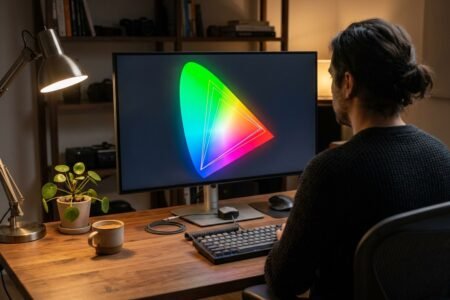
A color gamut in a monitor is the full range of colors the screen can physically reproduce, usually stated as a percentage of a standard color space such as sRGB, DCI-P3 or Adobe RGB. A wider gamut shows more saturated reds, greens and blues, but it only looks right when the gamut matches the content you are viewing.
That last part is where most buyers get confused. A spec sheet that says “125% sRGB” or “98% DCI-P3” sounds impressive, yet those numbers can describe very different things. This guide explains what color gamut actually means, how the main standards compare, how gamut percentages are measured, and which gamut makes sense for gaming, office work, photo editing, video and HDR.
What Is a Color Gamut in a Monitor? A Simple Definition
In color science, a gamut is the set of colors a device can accurately reproduce (a display or printer) or capture (a camera). No real display can show every color the human eye can see, so every monitor covers only part of the visible range.
Engineers usually draw gamuts on the CIE 1931 chromaticity diagram, the horseshoe-shaped chart that maps every hue and saturation an average person can perceive. The curved edge holds pure spectral colors, like the light from a single-wavelength laser. A monitor’s gamut appears inside that horseshoe as a triangle. The three corners are the monitor’s red, green and blue primaries, and every color the screen can mix sits inside that triangle.
The bigger the triangle, the more saturated colors the monitor can display. Two monitors can both be “full HD IPS” and still have very different triangles, which is why gamut is listed as its own spec.
Color gamut vs color space vs color depth
- Color space: a defined standard with fixed primaries, a white point and a transfer curve (for example, sRGB). It is a target, not a device.
- Color gamut: the range of colors a specific monitor can actually produce, often compared against a color space (“99% sRGB”).
- Color depth (bit depth): how many steps the monitor uses between colors, such as 8-bit or 10-bit. Depth controls how smooth gradients look; gamut controls how far the colors reach.
Put simply, gamut is how wide the palette is, and bit depth is how finely that palette is divided.
The Main Color Gamuts Compared
Five standards appear on almost every monitor spec sheet. They share some primaries but were created for different jobs. The “share of CIE 1931” column shows how much of the visible chromaticity diagram each one covers.
| Color gamut | Defined by (year) | White point | Share of CIE 1931 diagram | Main use |
|---|---|---|---|---|
| sRGB | HP & Microsoft (1996); IEC 61966-2-1:1999 | D65 | ~35.9% | Web, Windows and most apps, office work, SDR games |
| Rec. 709 | ITU-R BT.709 (1990) | D65 | ~35.9% (same primaries as sRGB) | HDTV, SDR video, HD Blu-ray, YouTube/web video |
| DCI-P3 | Digital Cinema Initiatives (2005); SMPTE | ~6300 K (DCI) or D65 (Display P3) | ~53.6% | Digital cinema, HDR mastering, Apple and wide-gamut devices |
| Adobe RGB | Adobe (1998); IEC 61966-2-5 (opRGB) | D65 | ~52.1% | Photography and print prepress |
| Rec. 2020 | ITU-R BT.2020 (2012) | D65 | ~75.8% | 4K/8K UHD and HDR (Rec. 2100) container |
A few details are worth knowing:
- sRGB was proposed by HP and Microsoft in 1996 and standardized by the IEC as IEC 61966-2-1:1999. It is still the default color space of the web and is assumed for images that carry no color profile.
- Rec. 709 (ITU-R BT.709) was first approved in 1990 as the HDTV standard. It uses exactly the same primaries and D65 white point as sRGB, so the two gamuts are the same size; they differ in the tone curve and the intended viewing conditions.
- DCI-P3 was defined in 2005 for digital cinema projection. Apple’s Display P3 uses the same primaries with a D65 white point and the sRGB tone curve, which is the P3 version used across Apple devices and many smartphones. Display P3 is roughly 25% larger than sRGB in area and about 50% larger in volume.
- Adobe RGB (1998) was created by Adobe to cover most colors that CMYK printers can produce, mainly by extending into cyans and greens. The IEC later standardized it as opRGB.
- Rec. 2020 (ITU-R BT.2020), first published in 2012, uses primaries that sit on the edge of the visible spectrum. It is the container for 4K/8K UHD and, through Rec. 2100, for HDR video. Consumer monitors cover only part of it today.
DCI-P3 and Adobe RGB are about the same size but are not the same shape. DCI-P3 reaches further into deep reds, while Adobe RGB reaches further into cyan-greens. A monitor that covers 95% of one may cover noticeably less of the other.
How Monitor Gamut Percentages Are Measured: Coverage vs Volume
A gamut figure on a box is a comparison between the monitor’s triangle and a reference triangle. There are two common ways to make that comparison, and they can produce very different numbers.
Gamut coverage
Coverage is the share of the reference color space that the monitor actually overlaps. If a monitor has 97% DCI-P3 coverage, 97% of the DCI-P3 triangle falls inside the monitor’s triangle. Coverage can never exceed 100%, and it is the more honest number when you need to display a standard faithfully.
Gamut volume (or area)
Volume (sometimes called area or size) compares the total size of the monitor’s gamut with the reference, regardless of where it sits. A monitor can have 120% sRGB volume and still miss some sRGB colors if its triangle is shifted. Volume can go well above 100%, which makes it look impressive on a spec sheet.
Rule of thumb: when a spec sheet lists a gamut above 100%, it is quoting volume or area, not coverage. Look for the word “coverage” when you compare monitors.
Why the same monitor can show different numbers
Results also change with the diagram used. Percentages calculated on the older CIE 1931 xy diagram exaggerate differences in the green region compared with the more perceptually even CIE 1976 u’v’ diagram. Full 3D volume measurements in a space such as CIELAB also account for brightness, while 2D figures ignore it. Comparing a CIE 1931 figure from one brand with a u’v’ figure from another is not a fair test, so check which method each brand uses when the spec sheet says.
Delta E vs Color Gamut: Range Is Not Accuracy
The color gamut in a monitor tells you which colors it can reach. Delta E (ΔE) tells you how accurately it hits the colors it is asked to show. They measure different things, and a monitor needs both to look correct.
ΔE is a measured distance between the color a monitor was told to display and the color it actually produced. Lower is better. Under the original CIE76 formula, a ΔE of about 2.3 corresponds to a just noticeable difference; newer formulas such as CIEDE2000 weight hue, chroma and lightness to match human vision more closely. Makers of professional monitors commonly quote an average ΔE below 2.
Here is why the difference matters. A wide-gamut monitor showing ordinary sRGB content without color management will stretch sRGB colors out to its larger primaries. Skin tones turn orange-red and grass looks neon. The gamut is excellent, but the ΔE against sRGB is poor. A wide gamut without accurate color management can make colors less accurate, not more. That is why many wide-gamut monitors include an sRGB mode that clamps the output back to sRGB.
If accuracy is your priority, see our guide to the best monitors for color accuracy.
What Color Gamut Do You Need?
There is no single “best” gamut. The right one matches the content you watch or create most often.
Gaming
Most PC and console games are mastered in sRGB/Rec. 709 for SDR. Aim for close to 100% sRGB coverage for accurate SDR colors. If you play in HDR, a wider gamut matters more: VESA’s DisplayHDR certification (CTS 1.2) requires at least 90% DCI-P3 coverage for DisplayHDR 400 and 95% DCI-P3 for DisplayHDR 500 and higher tiers, plus 99% BT.709 coverage at every tier.
Office work and web browsing
Documents, spreadsheets, websites and most apps are built for sRGB. About 95–100% sRGB coverage is plenty. A very wide gamut adds little here and can make interface colors look oversaturated if the monitor has no sRGB mode. Our list of the best sRGB monitors focuses on exactly this kind of screen.
Photo editing
For photos shared online, near-100% sRGB coverage with low ΔE is the priority, because that is what viewers will see. If you shoot in RAW and print professionally, look for 95% or more Adobe RGB coverage, since Adobe RGB was designed around printable colors. Not sure what your current screen covers? Our guide on how to check Adobe RGB walks through it.
Video editing
SDR video for the web, YouTube and HDTV is graded in Rec. 709, so full Rec. 709/sRGB coverage is the baseline. HDR and cinema work target DCI-P3 (P3-D65); many HDR delivery workflows use P3-D65 primaries inside a Rec. 2020 container. A monitor with 95%+ DCI-P3 coverage and accurate presets for each space is the practical goal. See our picks for the best monitors for photo and video editing.
HDR movies and content
HDR10 and Dolby Vision content is encoded in a Rec. 2020 container but is commonly mastered within P3-D65 primaries. That makes DCI-P3 coverage the most useful HDR gamut figure for a monitor today. Rec. 2020 coverage is a forward-looking extra rather than a must-have.
Quick recommendations by use
- Gaming (SDR): ~100% sRGB coverage
- Gaming (HDR): 90–95%+ DCI-P3 coverage
- Office and web: 95–100% sRGB coverage
- Photo (web): ~100% sRGB coverage, low ΔE
- Photo (print): 95%+ Adobe RGB coverage
- Video (SDR): ~100% Rec. 709 coverage
- Video and HDR: 95%+ DCI-P3 coverage
Panel Types and Color Gamut
Panel type affects gamut, but less than many people think. On an LCD, the liquid crystal layer only filters light; the backlight and color filters set most of the gamut. That is why the same panel type can range from basic sRGB to wide gamut.
- TN: Older TN panels are usually built for speed and low cost and tend to have narrower color and noticeable color shift at angles. They are now uncommon in color-focused monitors.
- IPS: IPS panels have wide viewing angles that keep colors consistent across the screen. Gamut ranges from standard sRGB to wide DCI-P3 or Adobe RGB, depending on the backlight (wide-gamut models often use quantum-dot or special phosphor backlights).
- VA: VA panels offer higher native contrast than IPS. Their gamut, like IPS, depends mostly on the backlight, so you will find both sRGB-class and wide-gamut VA monitors. Colors can shift more at off-angles than on IPS.
- OLED (WOLED): Each pixel emits its own light, giving per-pixel contrast and true blacks. WOLED panels use white-emitting OLED subpixels with color filters, so their gamut depends on the filter design. Check the model’s measured DCI-P3 coverage.
- QD-OLED: QD-OLED panels, presented by Samsung Display at CES 2022, use blue OLED emitters with red and green quantum-dot color converters. Quantum-dot conversion improves both efficiency and color gamut, and QD-OLED is known for strong color volume.
Do not buy on panel type alone; check the measured gamut coverage of the exact model.
How to Check Your Monitor’s Color Gamut
1. Read the official spec sheet
The quickest way to learn the color gamut in a monitor you own or plan to buy is the manufacturer’s spec sheet. Start with the product page or user manual. Look for figures labeled “coverage” and the color space they reference (sRGB, DCI-P3, Adobe RGB). Note whether the percentage is above 100%, which signals a volume or area figure. Some brands also ship a factory calibration report with ΔE results.
2. Measure it with a colorimeter
A colorimeter is a small sensor that sits on the screen and reads the color of test patches. Popular consumer models come from brands such as Calibrite (the former X-Rite consumer line) and Datacolor (Spyder). Paired with software, it measures your monitor’s real primaries, white point and gamut, which can differ from the spec sheet because of panel variation, aging and the active picture mode.
3. Run DisplayCAL
DisplayCAL is free, open-source calibration and profiling software built on the ArgyllCMS color engine, available for Windows, macOS and Linux. After it profiles your display with a supported colorimeter, it reports both gamut coverage and gamut volume against sRGB, Adobe RGB and DCI-P3, and can produce a verification report with ΔE values.
- Connect your colorimeter and install DisplayCAL (it will set up ArgyllCMS for you).
- Set the monitor to the picture mode you want to measure and let it warm up.
- Choose your target (for example, D65 white point and a 2.2 or sRGB tone curve) and run calibration and profiling.
- When it finishes, read the gamut coverage and volume figures in the summary, and run a profile verification for ΔE.
To see a monitor’s native gamut rather than a clamped preset, profile it in its widest (native) color mode.
Recommended Wide Color Gamut Monitors
| Photo | Monitor | Key specs | Deal |
|---|---|---|---|
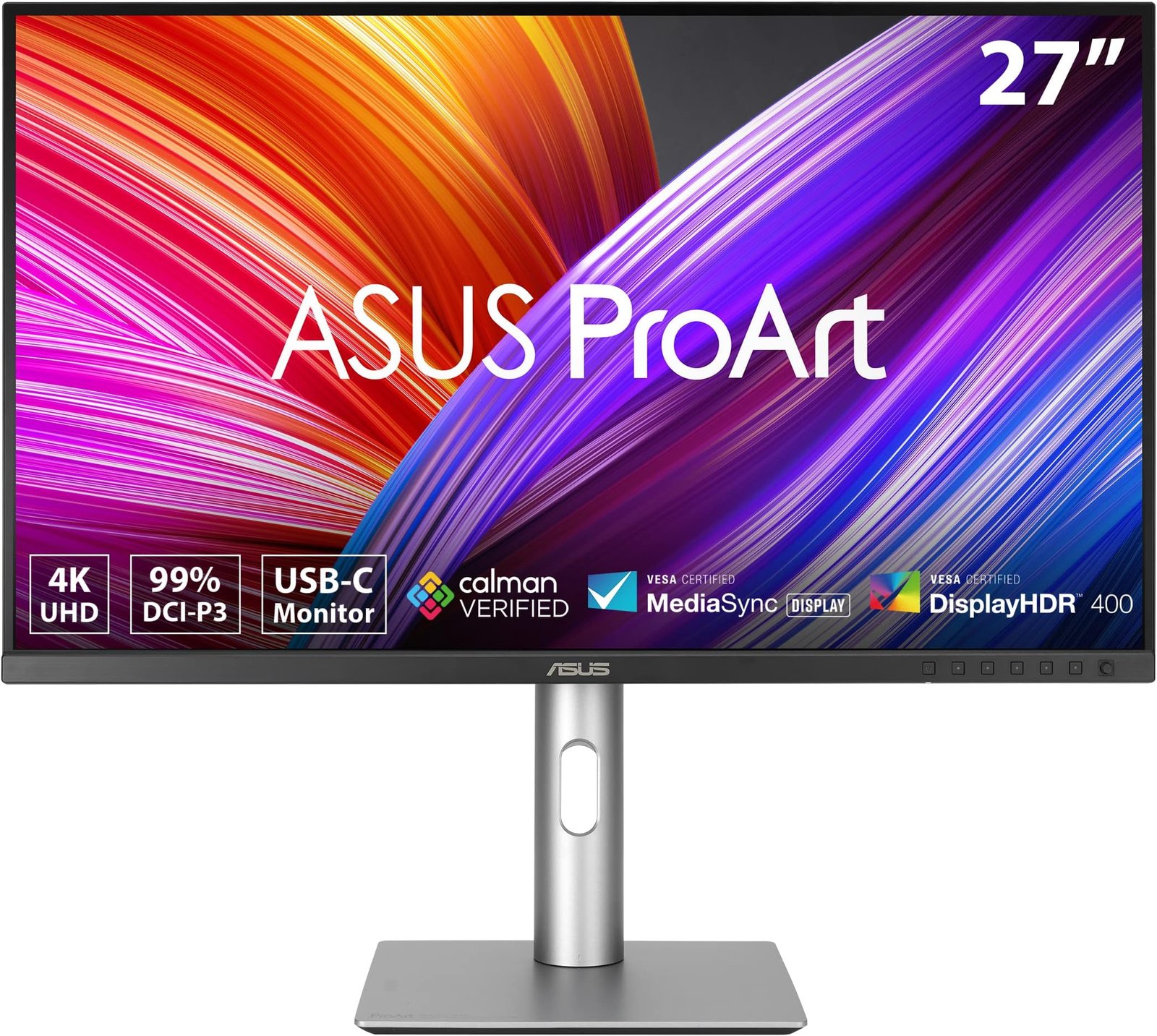 | ASUS ProArt PA27JCV 27″ 5K IPS Monitor Best for: Pros and creators who want 5K detail with factory-calibrated color | 27-inch 5K (5120×2880) IPS, 99% DCI-P3 and 100% sRGB wide color gamut, Calman Verified, Delta E<2, USB-C Power Delivery 96W, Auto KVM | Check Price |
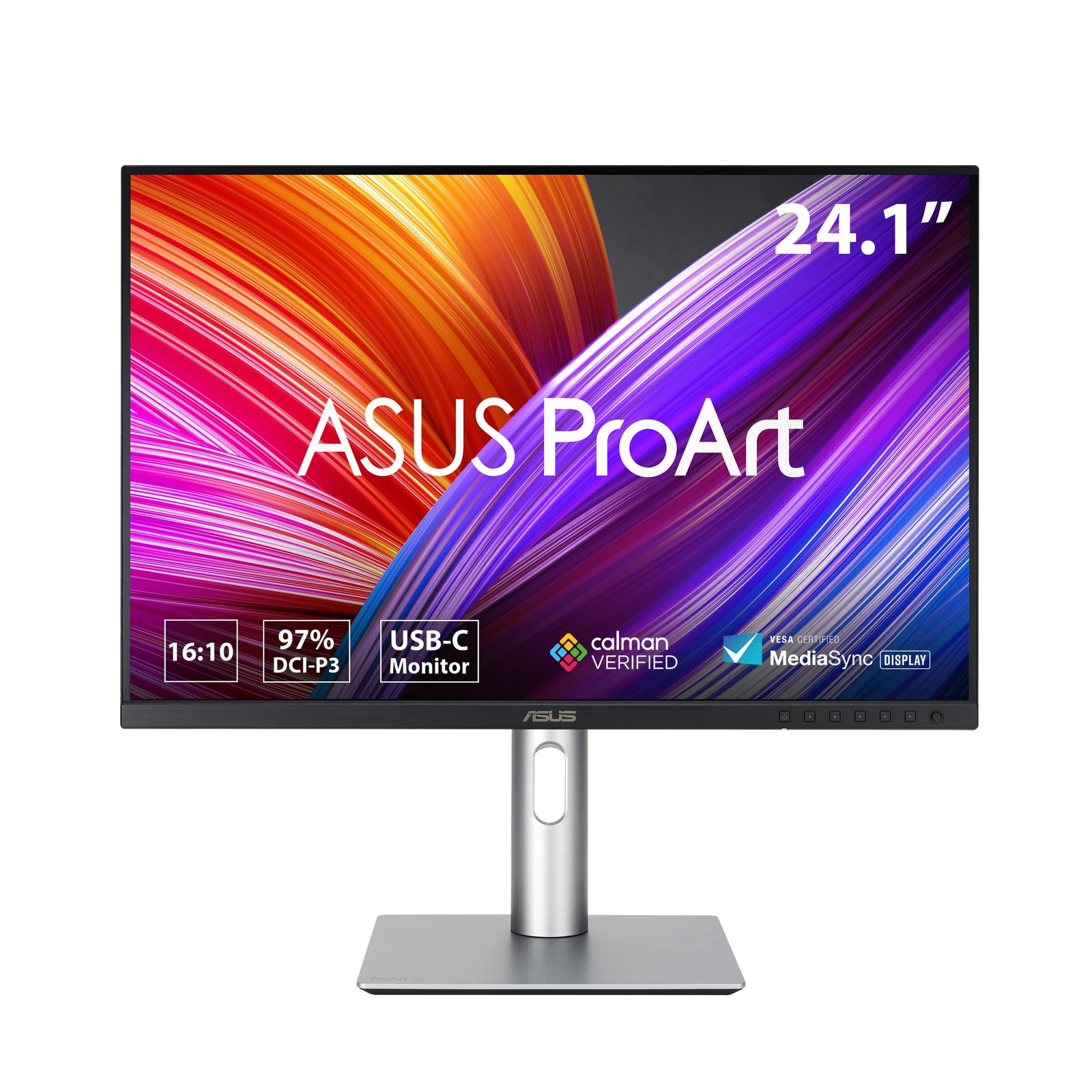 | ASUS ProArt PA248CRV 24.1″ WUXGA IPS Monitor Best for: Budget sRGB and Rec.709 photo and video editing | 24.1-inch WUXGA (1920×1200) 16:10 IPS, 97% DCI-P3 and 100% sRGB coverage, Delta E<2 factory calibration, 75Hz, USB-C | Check Price |
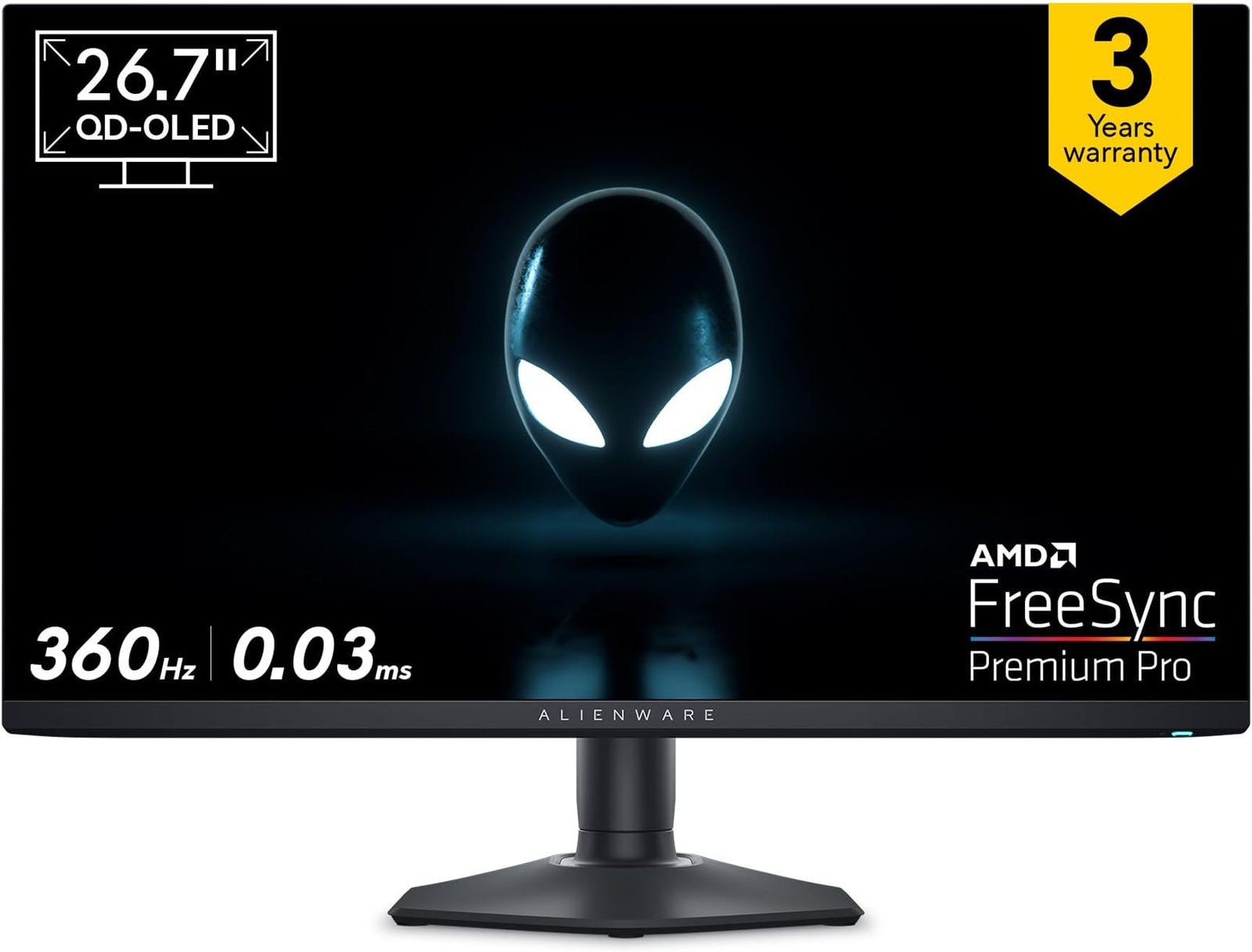 | Dell Alienware AW2725DF 26.7″ QD-OLED Gaming Monitor Best for: Wide-gamut HDR gaming and HDR video grading | 26.7-inch QHD (2560×1440) QD-OLED, DCI-P3 99.3% color coverage with Delta E<2 accuracy, 360Hz, 0.03ms | Check Price |
See the full list: Best Monitors for Color Accuracy and Best Monitors for Photo and Video Editing
As an Amazon Associate, we earn from qualifying purchases.
Frequently Asked Questions
What is a good color gamut for a monitor?
For everyday use, about 95–100% sRGB coverage is a good color gamut for a monitor. For HDR gaming or video, look for 90–95% or more DCI-P3 coverage, and for print photography, 95% or more Adobe RGB coverage.
Is 100% sRGB better than 90% DCI-P3?
They measure different things. 100% sRGB coverage is ideal for web, office and SDR games. A 90% DCI-P3 monitor has a wider gamut that suits HDR and P3 content, but it needs an accurate sRGB mode or color management to show sRGB content correctly.
Is DCI-P3 bigger than Adobe RGB?
They are similar in size but different in shape. Measured on the CIE 1931 diagram, DCI-P3 covers about 53.6% and Adobe RGB about 52.1% of visible chromaticities. DCI-P3 extends further into reds, while Adobe RGB extends further into cyan-greens.
Does color gamut matter for gaming?
Yes, but mostly for HDR. SDR games are made for sRGB, so near-100% sRGB coverage is enough. HDR games benefit from wide DCI-P3 coverage, which is why VESA DisplayHDR certification requires at least 90% DCI-P3.
How can I find my monitor’s color gamut?
Check the manufacturer’s spec sheet for coverage figures first. For a real measurement, use a colorimeter with free DisplayCAL software, which reports your monitor’s gamut coverage and volume against sRGB, Adobe RGB and DCI-P3.
Final Thoughts
The color gamut in a monitor is the range of colors it can show, and the best gamut is the one that matches your work. Choose near-100% sRGB coverage for office use, web content and SDR gaming. Step up to 95%+ DCI-P3 for HDR and video, or 95%+ Adobe RGB for print photography. Then check two things before you buy: that the spec says “coverage,” not volume, and that the monitor pairs its gamut with a low ΔE and a proper sRGB mode.

Brendon Martinez is a hardcore gamer with a background in electrical engineering and a passion for gaming, Brendon Martinez brings a unique blend of technical expertise and gaming enthusiasm to his writing. Having worked with leading tech companies, he dives deep into the intricacies of gaming technology and monitors, providing readers with detailed insights and reviews.